
HomeWhy CloudBridge · 04 of 05
Remove the clutter.
Keep it simple.
Users see only the apps and cloud workspaces IT assigns—not recommendations, tips or offers. The work PC gets back to doing one job: getting people to their work.
- Only IT-assigned apps
- No recommendations or offers
- Everyday controls kept
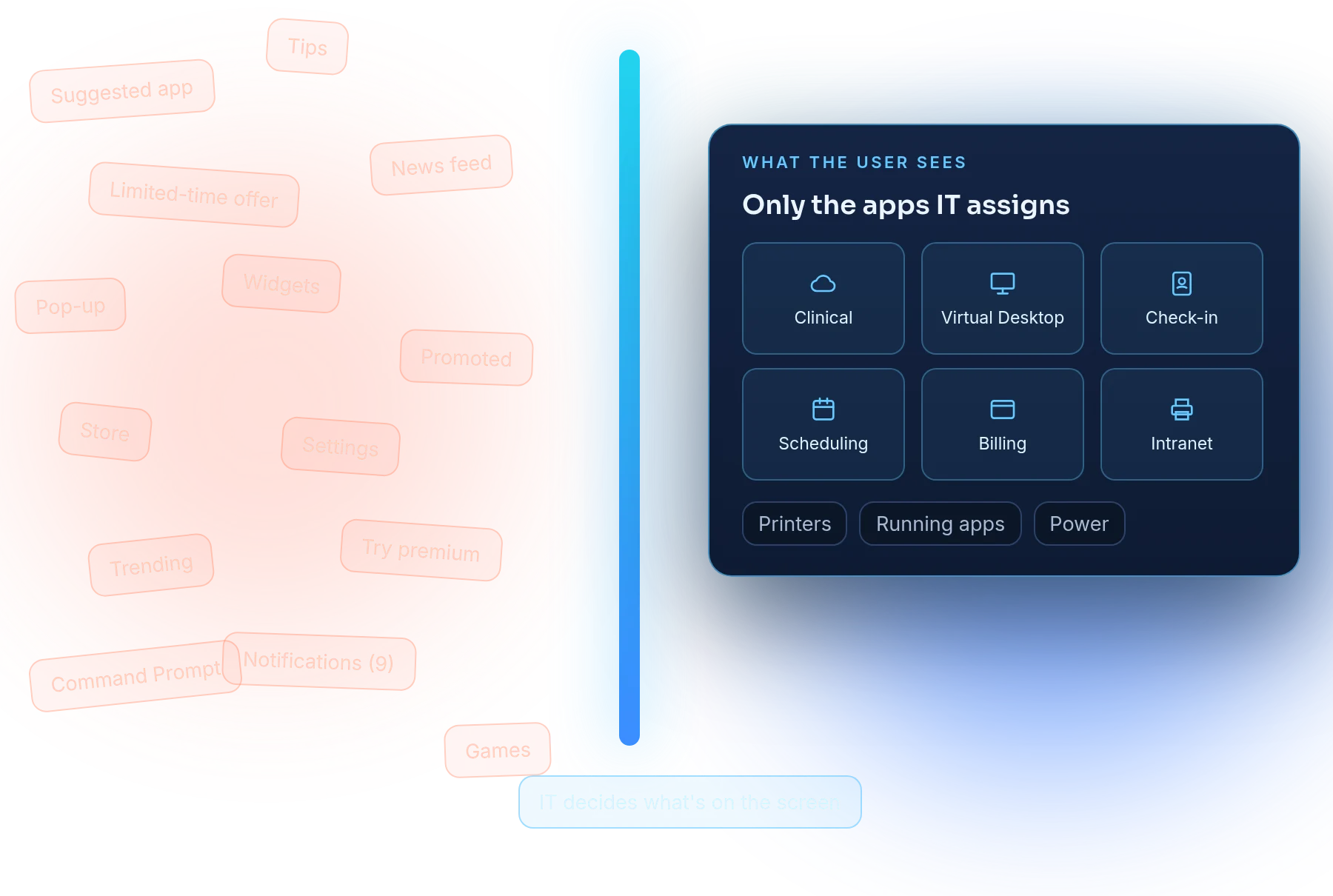
Same PC. Different first impression.
From everything, everywhere
to only what the job needs.
A general-purpose desktop is built to do a little of everything. A work PC usually needs to do a few things very well.

What goes, what stays
Focused isn’t
the same as locked out.
The noise
- Recommendations, tips, suggested content and offers on the start screen.
- A desktop full of shortcuts, downloads and leftovers.
- Apps nobody assigned.
- Open access to Settings, Task Manager, Command Prompt and File Explorer—restrictable by IT.
The essentials
- Assigned cloud desktops, web apps and approved local apps in one menu.
- Printers—deployed by IT or added by the user.
- Running apps from the system tray.
- Restart, shut down and sign out.
- Keyboard and accessibility settings.
- Get help and My tickets, right in the workspace.
Curious what a standard Windows 11 start screen can surface? Microsoft explains it here: recommendations and offers in Windows 11 ↗
The cost of noise
Distraction
isn’t free.
Every extra thing on the screen competes with the work—and every extra way in is something IT has to think about.
Average time before interrupted work was resumed.
Source: Gloria Mark, UC Irvine, Gallup Business Journal (2006)A meeting, email or notification interrupts the average Microsoft 365 user.
Source: Microsoft Work Trend Index (2025)of breaches involved the human element.
Source: Verizon Data Breach Investigations Report (2026)Simple for people. Specific for IT.
You decide
what’s on the screen.
Every choice is made in CloudBridge Client Manager and assigned by device group.
Launcher policy
Pick the cloud desktops, web apps and local apps each group should see.
Lockdown controls
Keyboard filters and restrictions for Settings, Task Manager, Command Prompt, File Explorer and more.
Your brand at logon
A custom-branded logon screen gives people a recognizable starting point.
Files, on your terms
Admins decide which files people can reach from the workspace.
Printers by policy
Deploy printers to devices, or let people add their own.
Clean every morning
An optional Unified Write Filter setting discards changes at restart.
Questions IT asks
Straight answers
about simplicity.
Which apps can users open?
The apps IT assigns: local Windows apps, web apps and remote desktops, together in one menu.
Will people lose basic PC controls?
No. Users keep printers, running apps, restart, shut down and sign out, plus keyboard and accessibility settings.
Can the logon screen use our branding?
Yes. SecureClient supports a custom-branded logon screen.
Make the next step practical
You have the device,
we have the solution.
$89 per device for the first year, renewing at $44.50. CloudBridge RMM with SecureClient included.